Article
Analyze, translate, and summarize your sheet data instantly with AI
May 28, 2026
Eliminate manual data processing and get instant insights into your data with Smart Columns.
Instead of spending hours manually categorizing feedback, translating individual cells, or summarizing updates, Smart Columns bring the power of AI directly into your sheets, so you can synthesize and transform data at scale. Whether you’re managing projects across global teams or analyzing hundreds of customer comments, you can now automate the heavy lifting of data analysis in seconds.
Choose from three new AI-powered column types:
- Translate: Bridge communication gaps and support global operations by automatically localizing sheet data into 14 supported languages.
- Summarize: Turn long updates or task descriptions into concise, actionable summaries for quicker executive reporting and scannability.
- Analyze sentiment: Instantly pulse-check the tone of customer feedback or status updates to prioritize where your attention is needed most.
How to add a Smart Column to your sheet:
- Open a sheet where you have admin permissions in table view.
- To add a new column, click on the + symbol between two column headers or select the column properties “kebab” menu from any column or right click on any column header and click on Insert column left/right.
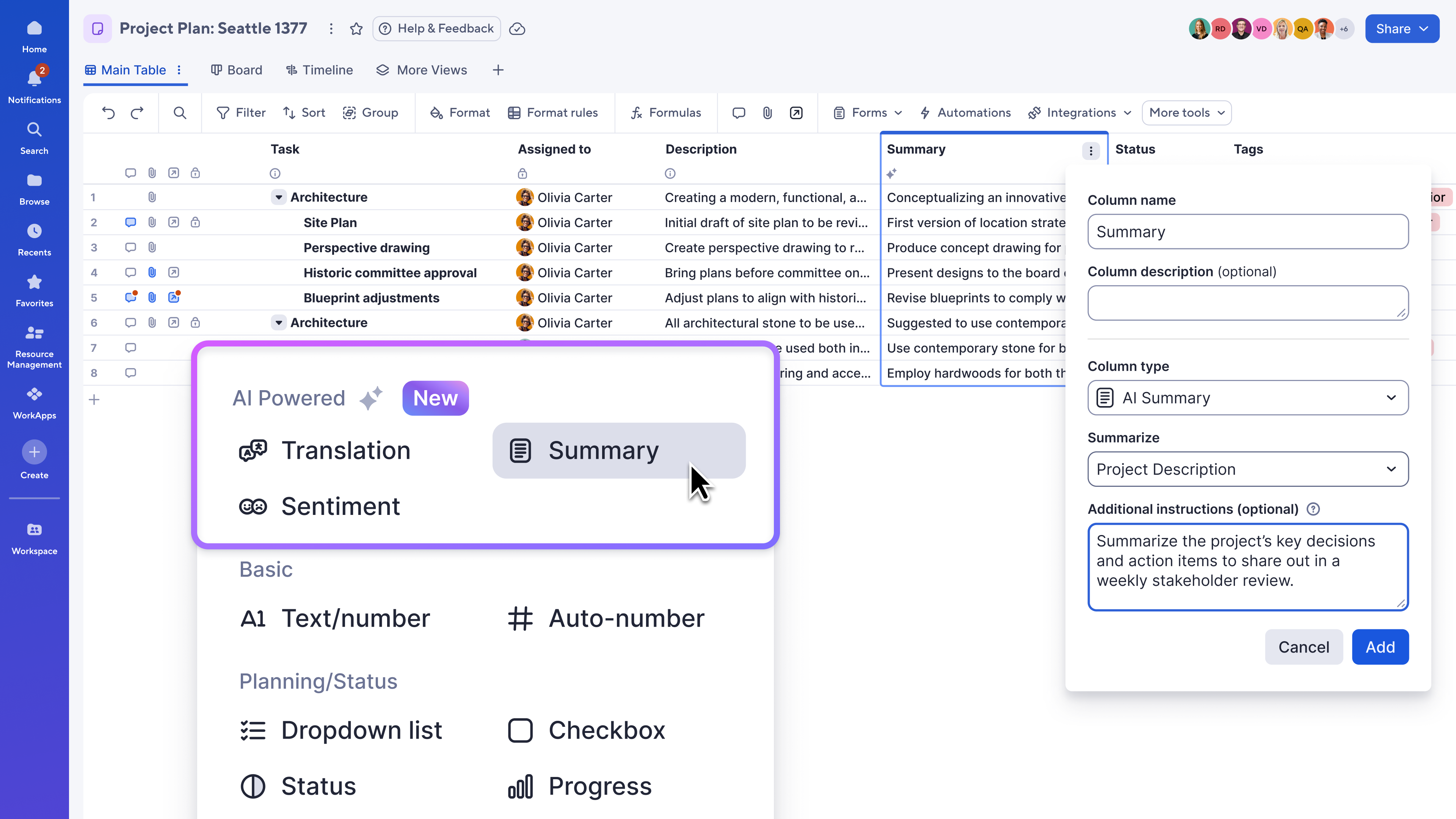
- Choose from three new AI-powered column types at the top of the add column menu: Translation, Summary, or Sentiment.
- Select your source data column(s) and add any additional instructions, such as setting a word count or requesting a specific tone.
- For translation, select the language you’d like to translate to.
- For sentiment analysis, you can choose between pre-populated labels (positive, neutral, and negative), add your own labels, and/or modify label colors.
- Name your column with or without a description and click ‘Apply’ and, in seconds, your new column will populate with data. An AI sparkle icon will appear in the header to indicate the content is AI-generated.
Smart Columns stay up-to-date with your work. When any changes are made to the referenced data in a row in table view, your AI column will refresh automatically to ensure accuracy. Open ‘Column Properties’ to edit your AI column at any time. Learn more.
Environments availability: Commercial US, Commercial EU, Commercial AU
Plan availability: Pro, Business, Enterprise, Advanced Work Management
Subscription Model Availability: Legacy Collaborator Model and User Model