Article
Start in Claude, run it in Smartsheet: a builder’s guide to Claude Sheets and the Smartsheet interactive connector

This is the second post in our Smartsheet Builders Series: Building with Smartsheet MCP and Agents. The first post compared four ways to get work done in Smartsheet: Smart Assist, automations, MCP and the API. This one picks up where MCP leaves off, when work you started in an AI client has to become work your team runs.
You own a product launch. The plan lives in your head, three Slack threads and a half-finished spreadsheet. Soon, a dozen people across product, sales and creative need to know what they own and when it is due. Your VP wants a dashboard. An outside agency needs to confirm delivery dates.
You can build that plan directly in Smartsheet, by hand or with Smartsheet AI. Now there is one more way to start it. Anthropic launched Claude Sheets, a spreadsheet artifact in Claude, now in beta, alongside a new Send to Smartsheet feature that moves a Claude Sheet into Smartsheet in a few clicks, connecting it to the rest of your work. Smartsheet is also among the first interactive connectors in Claude, built on MCP Apps (an open extension to the Model Context Protocol), starting with a live data quality audit panel for your Smartsheet data that opens right beside the chat. Now you and Claude can work in Smartsheet together.
If your teammates are already building plans and trackers in Claude, Send to Smartsheet gives that work a place to land next to yours, where the whole team can run it.
Below, we follow one launch plan from the first prompt to a team working from it. If you build on MCP, read on for the section on how the new interactive panel works.
The plan starts as a conversation
This time, you start in Claude and describe the work the way you would to a colleague:
Try this in Claude:
Build a launch tracker for our Q1 product release. Columns for task, owner, due date, status and priority. Status should be a dropdown. Group the tasks into phases: planning, build, launch, follow-up.
Claude Sheets drafts a spreadsheet in seconds. You push back on the dates, ask for a budget column, and rename a phase. Ten minutes later, you have a good first draft.
But a first draft is not finished work. Nobody owns a row yet, and nothing reminds anyone to take action. Smartsheet is where your whole team picks it up from there.
One send, and it lands
Next, you can click Share, then Export, and pick Smartsheet from the Send to menu. If Smartsheet is not listed, you’ll find it under More formats and apps. If you have never used the Smartsheet connector for Claude, click Connect to set it up first. Then Claude will ask you to pick the workspace where the sheet should land (in this case, your launch workspace), and Claude creates a new sheet there with your own Smartsheet login.
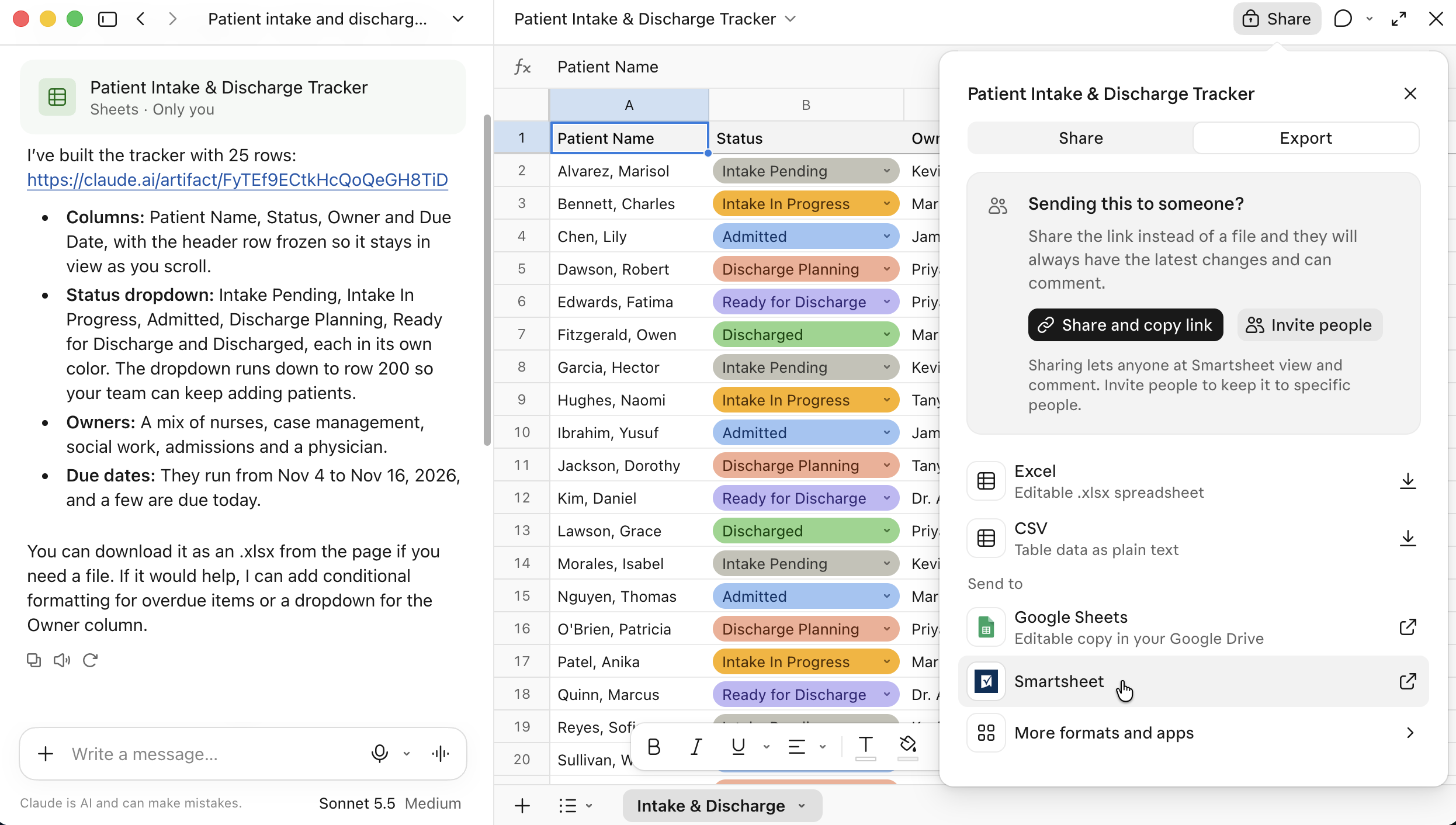
A moment later, Claude replies with a link to the new sheet, a row count, and a short note about anything that changed form or was left out — telling you exactly what to fix next.
Open the link and the tracker is already workable. Dates are real dates, numbers are real numbers, and your Status dropdown is now a single-select column with the same options. Sheets with hundreds of rows arrive complete and in order, ready for you to keep working in Smartsheet.
Reading the fine print, then building on it
Claude’s note lists anything that didn’t come over as-is. In this tracker, the budget formulas arrived as values, the formatting stayed behind, and the owner names came through as plain text. None of that takes long to fix, and Claude can fix all of it in the same conversation using the Smartsheet connector. Read the release note for the full list.
One more thing to know: a send is a one-time copy, not a sync. From here on, the Smartsheet sheet is the one your team works from.
A send is also safe to try. It never overwrites existing work: each send creates a new sheet in the workspace you pick. If you are not sure a draft is ready for your team, send it to a workspace only you use, review it there, and move it once it’s ready. You can also have Claude ask before every change it makes, and every change is recorded in the sheet’s cell history.
Through the Smartsheet connector, Claude can see the new sheet and the plan or project it connects to. You can continue to make changes and build it out in your conversation:
Try this in Claude:
Rebuild the budget formulas in the new Smartsheet sheet, add hierarchy so tasks sit under their phases, and change the Owner column to a contact column. Use these work emails for the owners: [name, email], [name, email], [name, email].
Then you can go a step further. Ask Claude to send a reminder before each due date and route approvals when a task moves to Review. Ask for a dashboard that shows status by owner and highlights overdue work. Within the hour, the first draft has owners, automations and a dashboard, and your VP has a link.
The outside agency never has to log in at all. An automated update request reaches them by email, they confirm their dates, and the answers flow straight back into the sheet.
Check it before you share it
Before you share the tracker with the whole launch team, it’s worth a quick check. A dozen people are about to work from this sheet, so it should be complete and consistent.
To check, just ask in Claude, with the Smartsheet connector:
Does this sheet look healthy? What should I fix before I share it?
A panel opens beside the conversation with a live data quality audit, powered by the Smartsheet Data Quality Agent. It gives the sheet an overall grade, grades each dimension, such as ownership or status coherence, and flags missing data, inconsistencies, duplicates and stale rows. Then it splits what it found into two groups: routine fixes Claude can make once you approve them, and judgment calls that need your decision.
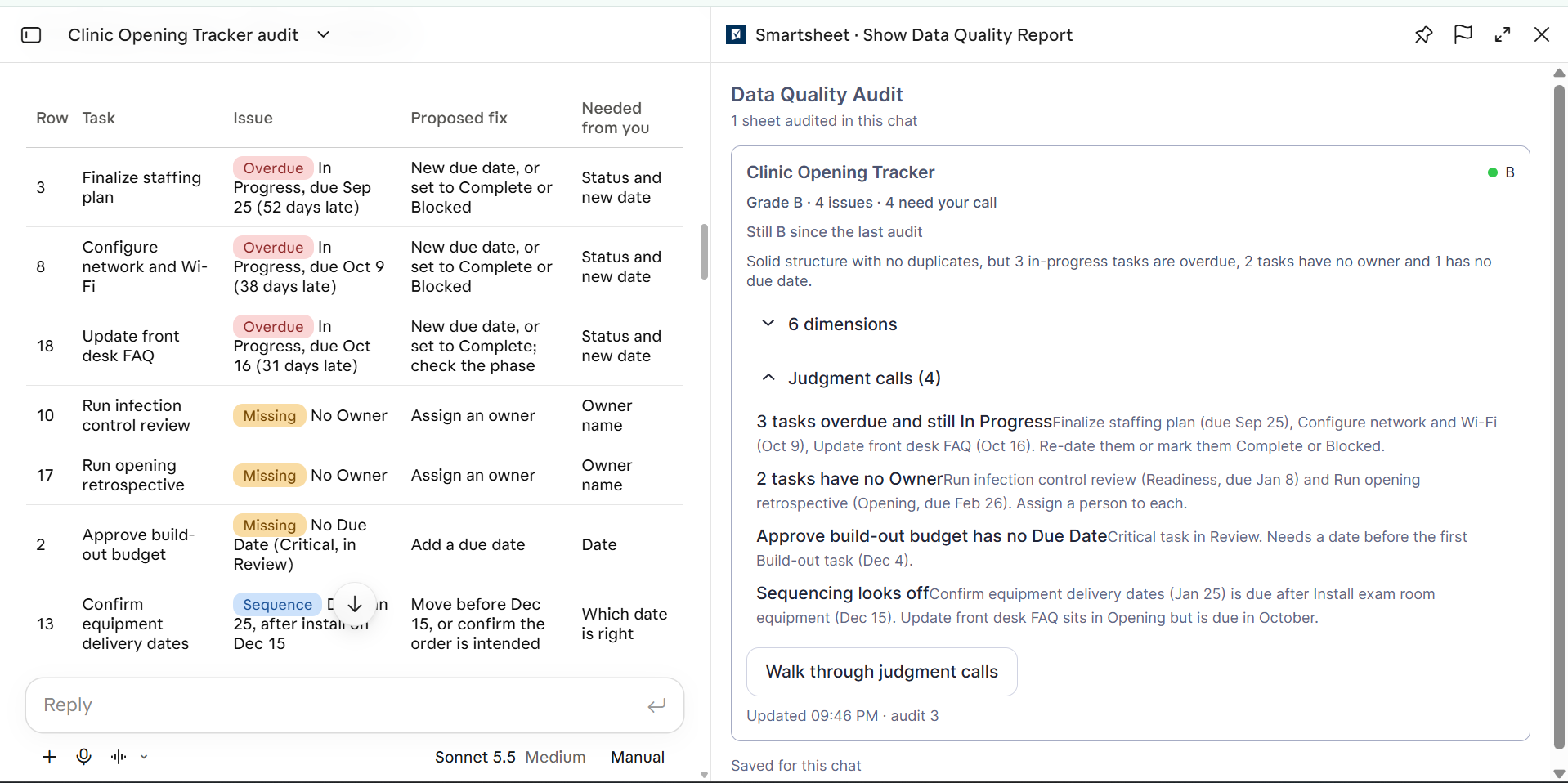
From there, you stay in control. You can ask Claude to fill in missing due dates and remove duplicate tasks. You approve each change the same way you approve any connector action, and you watch the audit update in real time as each fix lands, without leaving the chat. The judgment calls, like assigning a task without an owner, stay with you.
If you need more room, you can expand the panel to full screen or hide the chat column without closing it. When the audit comes back clean, you’re ready to share the sheet. It all works through your existing Smartsheet connector in Claude, with nothing new to set up.
Under the hood: what makes the panel different
This section is for anyone who builds on MCP or decides how AI works with your team’s data.
Most connectors return text. A tool runs, Claude summarizes the result, and you open Smartsheet to check it yourself. The new data quality panel works differently, and it’s just the first example of Smartsheet as an interactive connector in Claude. It’s built on MCP Apps, an open extension to the Model Context Protocol that lets a connector show its own interface inside Claude.
The panel doesn’t run the audit itself. A Smartsheet skill, data-quality-audit, using the Smartsheet Data Quality Agent, grades the sheet, and the panel shows what it found. Because the audit logic and the view are separate, we can improve the audit without touching the panel, and use the same skill where a panel doesn’t fit.
Here is what that looks like in a real conversation:
- You: Does this sheet look healthy?
- The panel opens beside the chat. The audit flags missing due dates, a duplicate task and a few stale rows.
- You: Fill in the missing due dates from the phase end dates, and remove the duplicate.
- Claude proposes the changes, and you approve each one.
- The panel updates. The fixed issues drop off the list, and what is left stays flagged for you to decide.
One prompt opens the view, your approvals drive the changes, and the view keeps up. You can see each change land, right beside the conversation.
Under both features sits the same rule. Work that arrives from Claude follows the same Smartsheet permissions and approvals as everything else. Claude can see and change only the sheets and workspaces you already can.
For teams that have to answer to security and compliance, that matters as much as the panel itself. Smartsheet recently earned ISO/IEC 42001 certification for responsible AI management. Customer data stays with the customer and inside their permissions, and Smartsheet's agreements with its third-party AI providers prohibit them from training foundation models on customer content.
If you don’t see the new panel
If the panel doesn’t appear yet, it may still be rolling out: it arrives in Claude on the web and Claude Desktop as part of the new Claude experience, once your account is updated or your organization turns it on. If your organization allows all of the Smartsheet connector’s tools, the panel appears as it rolls out. If your admin restricts connector tools, ask them to set the default to Needs approval rather than Blocked.
What to take from this if you build with Smartsheet
The example here is a launch tracker, but the same habits apply to any plan your team starts in Claude.
Decide where the source of truth lives. A send is a one-time copy, so once a plan lands in Smartsheet, that’s the version your team works from. Make that clear to anyone who drafts in Claude. If you run a PMO, try a staging workspace for AI-drafted plans: sheets arrive there, get checked and reviewed, and then move into the workspace your team runs on. A plan can start anywhere, but it counts once it’s in the workspace you govern.
Make the check part of the process. The data quality audit is most useful as a routine step rather than a rescue. Run it before you share a sheet, and before a plan joins a portfolio, not after someone spots a problem. Let Claude handle the routine fixes, like missing dates and duplicates. Keep the judgment calls, like who owns a task, with the people who have to live with them.
Set approvals to match your trust. You decide how much Claude can change without asking. Start with Needs approval, so you see and approve each change while you get used to the flow. Once you trust a routine step, such as adding rows, set that tool to Always allow under Customize > Connectors > Smartsheet > Configure. Admins can set the same controls for the whole organization.
If you write code and build your own MCP server, you can give it an interactive view too. The data quality panel shows a pattern worth borrowing: keep the logic in a skill, and use a separate view to show its results. Start with the MCP Apps specification and SDK, linked at the end of this post. Support in Claude is in public preview for developers.
The plan is running
A few days later, the work started in Claude Sheets has moved fully into Smartsheet. Twelve people know what they own. The agency confirmed its dates by email. Your VP checks the dashboard instead of asking you for a status update. And when you ask Claude which tasks are falling behind, it answers from the live data in Smartsheet, not from the first draft.
That is what this launch adds. Once a sheet lands, it joins the Execution Graph, which connects tasks to the projects, programs and goals they serve. Every discussion, automation and agent you add gives the next one more context to work from. Claude Sheets is where you explore the shape of a plan. Smartsheet is where it gets owners, rules and a place in the bigger picture.
So pick a real plan, build it in Claude Sheets, send it, and run the audit before you share it. Or share this post with the teammates who already start their plans in Claude. Then tell us what you built and what you’d like to see next in the Smartsheet Builders: MCP, Agents, and API community. Your prompts and feedback will shape where this series goes.
Get started
- Connect Smartsheet to Claude: in Claude, go to Customize > Connectors, search for Smartsheet and select Connect (available on Smartsheet Business, Enterprise and Advanced Work Management plans).
- Build a plan in Claude Sheets, then choose Share > Export > Send to > Smartsheet and pick a workspace.
- Ask Claude to check the sheet's data quality before you share it with your team.
Learn more
Send to Smartsheet from Claude Sheets
- Press release: Smartsheet integrates with Claude Sheets
- Release note: Send to Smartsheet from Claude Sheets, now available in beta!
- Help Center: Export a Claude Sheet to Smartsheet
Interactive connectors in Claude
- Smartsheet is now an interactive connector in Claude, starting with data quality audits beside your conversation
- Your apps can now open in Claude, and Claude can work in them, from Anthropic
- MCP Apps specification and SDK, on GitHub
- Help Center: Audit a sheet for data quality issues
Smartsheet in Claude
- Access Smartsheet in Claude
- Smartsheet MCP prompt library
- Conversational AI: Smart Assist and MCP
- Smartsheet Builders: MCP, Agents, and API community
Earlier in the series: Post 1: Smart Assist, Automations, MCP or the API: How to Choose
